The Los Alamos National Laboratory (LANL) has the Advanced Research in Cyber Systems (ARCS) group that provides an intereting data set for cybersecurity purposes.
Since cybersecurity datasets are difficult to come by, I decided to play a bit with this dataset. No particular purpose in mind besides just playing and maybe exploring some different technologies (duckdb, neo4j, llm). Basically a memo to self in playing with data sets.
The page from LANL provides a very nice overview per data set, including example data. This blog will focus on the Comprehensive, Multi-Source Cyber-Security Events data set.
Main take aways for me were:
Just throwing data together gets you nowhere.
Still lotsa fun to play with all kinds of technology
Maybe duckdb isn’t that bad of a format to exchange data
Loading the data into DuckDB
You can query the data directly, but since I might want to move the data to other locations or share it with peeps, I decided to import the data into DuckDB. To make it easier to revert back to ‘known good’ I decided to import the data as is into ‘_raw’ tables.
# Load auth.txtduckdb arcs-data.db -c "create table auth_raw (ts uinteger, user_src varchar, user_dst varchar, hostname_src varchar, hostname_dst varchar, auth_type varchar, logon_type varchar, auth_orient varchar, logon_result varchar); copy auth_raw from 'auth.txt';"# Load redteam.txtduckdb arcs-data.db -c "create table redteam_raw (ts uinteger, username varchar, hostname_src varchar, hostname_dst varchar); copy redteam_raw from 'redteam.txt';"
For the ones curious about size, columnar storage does make a difference:
-rw-rw-r-- 1 user user 14G Apr 5 21:53 arcs-data.db-rw-r--r-- 1 user user 69G Apr 5 20:31 auth.txt-rw-r--r-- 1 user user 23K Apr 5 20:41 redteam.txt
Using the DuckDB UI
As mentioned in an earlier blog post DuckDB ships with a UI which can be started like this:
duckdb -ui arcs-data.db
or if you prefer a different port number:
duckdb arcs-data.dbset ui_local_port = 4214;call start_ui();
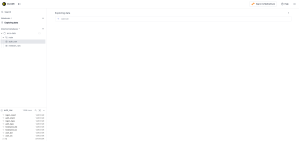
Exploring the data with natural language
Before we go all old-skool on the data and explore it ourselves, let’s just play around with the data using an LLM and an MCP server.
duckdb arcs-data.dbinstall duckdb_mcp from community;load duckdb_mcp;select mcp_server_start('http','localhost',8080,'{}');
With that setup, I decided to use LM Studio and used the following MCP config. Yes living on the edge, no authentication. The model for this playing around was qwen3.5-9b.
{ "mcpServers": { "duckdbmcp": { "url": "http://localhost:8080/mcp" } }}
Well, this looks pretty fun, we can now also verify the results if we so desire by using the provided query in the DuckDB UI.
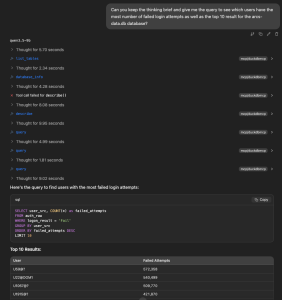
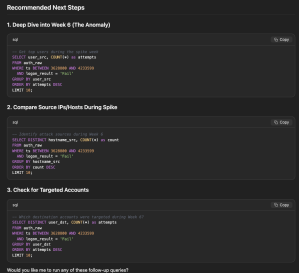
This took almost no effort and it is kinda fun to not only explore the data, but also have a kind of a brainstorm partner while doing so. With my limited experience, I do think that SOTA models would do much better on this data set. Although, it is not entirely wrong with the suggested follow-up steps:
Playing with Neo4j
Well using DuckDB does give us some nice way to only play with the data using SQL, but if we use the MCP server we can also use an LLM to query the data. This type of data, is however also very interesting to play with from a graph perspective, that is as nodes and edges. I did delete edges a lot when playing though:
match (:User)-[r:AUTHENTICATED_TO]->(:Computer) limit 100000 delete r;
Modeling the data
Question is a bit, how do we want to model the data? SpecterOps has a very nice overview on their approach here. For me it helps if I can visualize it, for which this online app from Neo4j is pretty useful. Yet, it does help to understand what questions we’d like to ask. That helps to figure out how to model the data.
It also does help to understand a tiny bit better to know what ‘logged in’ means, this reference from Microsoft provides some insights:
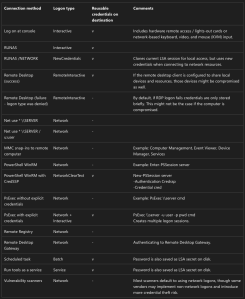
I ended up with just importing some connections and go with the flow, since I don’t necessarily have a clear goal except to play with the data a bit. The basic edges I imported was just modeled like this, not the most efficient manner I guess.
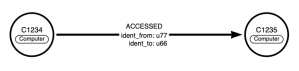
We could also add the users to the computers with things similar to bloodhound whereby a user HAS_SESSION on a computer if we see that the logged on or originate from a computer, thus indicating they are logged in. I skip that in this blog post, but you can do that if you want to play with more aspects of the data.
Importing the data
To import the data we are just going to use the readily available neo4j containers and use a local directory to store the neo4j data:
mkdir neo4jstoragedocker run --publish=127.0.0.1:7474:7474 --publish=127.0.0.1:7687:7687 -v $PWD/neo4jstorage:/data --name lanlneo4j neo4j:2026.02.2-trixie
With the help of AI, we do get a nice quick & dirty modular-ish script to play with:
#!/usr/bin/env python3

# requirements.txt
'''
duckdb==1.5.1
#neo4j==6.1.0
#numpy==2.4.3
#pandas==3.0.1
#python-dateutil==2.9.0.post0
#pytz==2026.1.post1
#six==1.17.0
'''
import duckdb
from neo4j import GraphDatabase

# 1. Connection Configurations
DUCKDB_PATH = 'arcs-data.db'
NEO4J_URI = "bolt://localhost:7687"
NEO4J_USER = "neo4j"
NEO4J_PASSWORD = "<YOUR_PASSWORD_HERE>"

con = duckdb.connect(DUCKDB_PATH)
# set environment variables
con.execute("SET memory_limit='4GB'")
con.execute("SET threads=4")

driver = GraphDatabase.driver(NEO4J_URI,auth=(NEO4J_USER,NEO4J_PASSWORD))


def run_stage(query, cypher, description, chunk_size=500):
    print(f"--- Starting {description} ---")
    res = con.execute(query)
    with driver.session() as session:
        while True:
            df = res.fetch_df_chunk(chunk_size) # Balanced batch size
            if len(df) == 0: break

            data = df.to_dict('records')
            session.run(cypher, rows=data)
            print(f"Processed {len(df)} records...")

# --- PRE-FLIGHT: CREATE INDEXES (Mandatory) ---
with driver.session() as session:
    session.run("CREATE CONSTRAINT user_idx IF NOT EXISTS FOR (u:User) REQUIRE u.name IS UNIQUE")
    session.run("CREATE CONSTRAINT comp_idx IF NOT EXISTS FOR (c:Computer) REQUIRE c.name IS UNIQUE")

# --- STAGE 1: Unique Users ---
run_stage(
    "SELECT user_src as username FROM auth_raw UNION SELECT user_dst FROM auth_raw",
    "UNWIND $rows AS row MERGE (:User {name: row.username})",
    "Stage 1: Creating User Nodes"
)

# --- STAGE 2: Unique Computers ---
# We combine src and dst to get every unique host in one go
run_stage(
    "SELECT hostname_src as name FROM auth_raw UNION SELECT hostname_dst FROM auth_raw",
    "UNWIND $rows AS row MERGE (:Computer {name: row.name})",
    "Stage 2: Creating Computer Nodes"
)

# --- STAGE 3: User to Computer (The "Who accessed what") ---
run_stage(
    """
    select distinct
      user_src, hostname_src,
        user_dst, hostname_dst
    from
        auth_raw
    where
        user_src not like '%$@%'
        and user_dst not like '%$@%'
        and user_src not ilike 'anonymous logon%'
        and user_dst not like 'anonymous logon%'
        and logon_result = 'Success'
        and auth_orient = 'LogOn'
        and hostname_src <> hostname_dst
        and user_src not ilike 'network service@%'
    and (
        logon_type = 'RemoteInteractive'
        or logon_type = 'Network'
        or logon_type = 'NetworkCleartext'
    )
    """,
    """
    UNWIND $rows AS row
    MATCH (c:Computer {name: row.hostname_src})
    MATCH (d:Computer {name: row.hostname_dst})
    MERGE (c)-[r:ACCESSED {ident_from: row.user_src, ident_to: row.user_dst}]->(d)
    """,
    "Stage 3: User-to-Computer Links",
    100
)

driver.close()
Query the data in Neo4j
Some things are just easier with SQL, so first we retrieve the the computers with the most number of users.
SELECT
    hostname_dst,
    COUNT(DISTINCT user_dst) AS unique_user_count,
    COUNT(*) AS total_logon_events
FROM auth_raw
WHERE logon_result = 'Success'
  AND auth_orient = 'LogOn'
  -- Optional: Filter out service accounts to find where humans go
  AND user_dst NOT ILIKE 'network service%'
  AND user_dst NOT ILIKE 'anonymous logon%'
  AND user_dst NOT LIKE '%$@%'
  AND (
    logon_type = 'RemoteInteractive'
    or logon_type = 'Network'
    or logon_type = 'NetworkCleartext'
  )
GROUP BY hostname_dst
ORDER BY unique_user_count DESC
LIMIT 10;
Now, we can query a specific user, for example C457.
// find path to specific computer nodeMATCH path = (src:Computer)-[:ACCESSED*2..6]->(target:Computer {name: 'C457'})WHERE src <> targetRETURN pathLIMIT 50
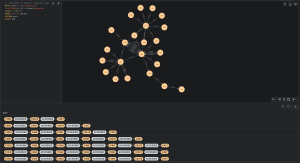
With all this going on, it makes you wonder if the next step shouldn’t be an AI agent that does all of this :)


One thought on “Playing with the LANL ARCS Data Sets”